
This guide covers every menu you can see on your own screen, in the order it appears in your sidebar. Each entry explains what the page is for and the exact steps to carry out its actions. For transport officers and drivers.
1. Signing in
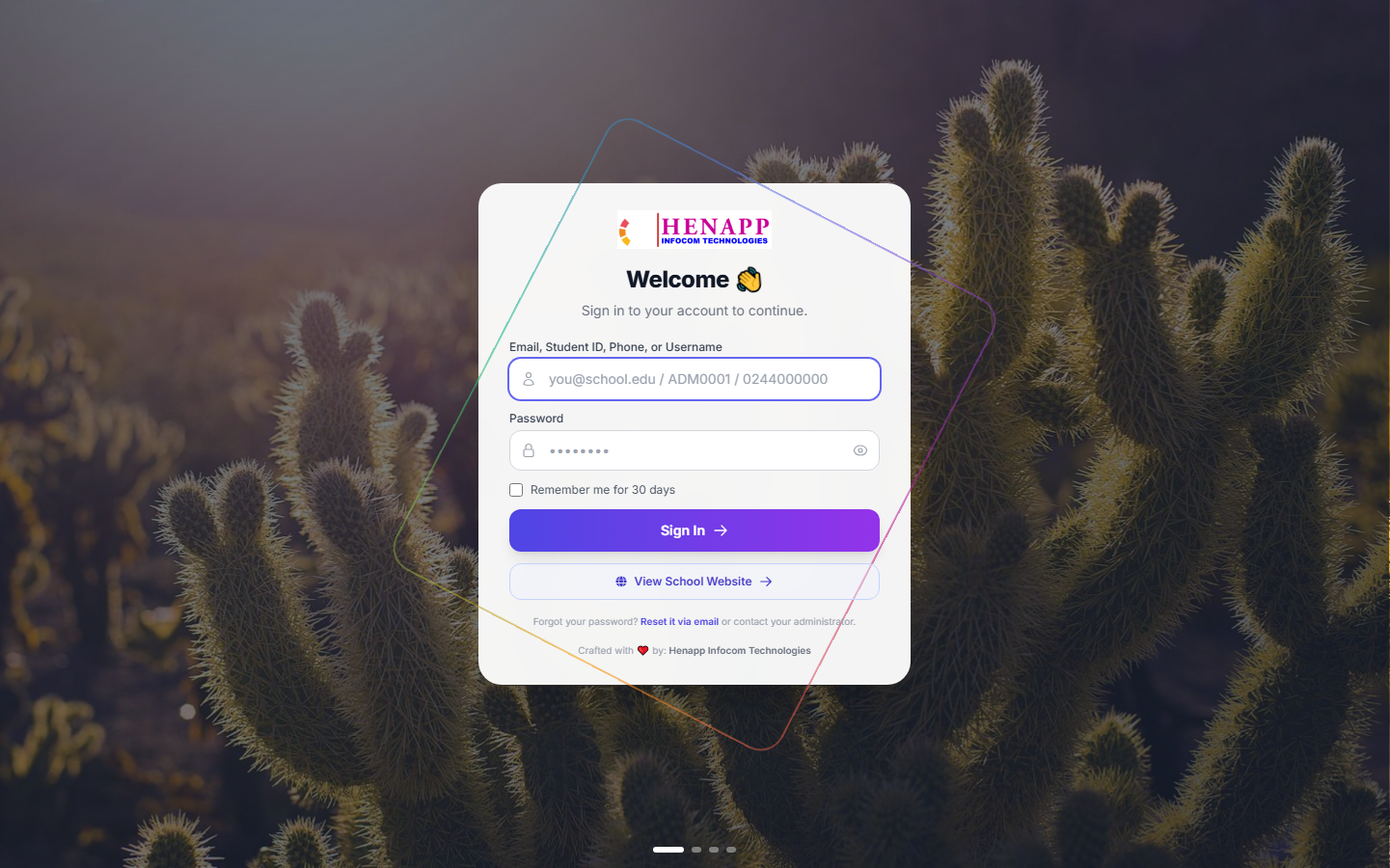
Your school gives you a web address, your email or username, and a first-time password. Open the address in any modern browser — Chrome, Edge, Safari or Firefox — on a phone, tablet or computer.
How to sign in
- Open your school portal address. If you were given a link, tap it.
- Type your email address or username in the first box.
- Type your password in the second box. Passwords are case-sensitive.
- Tick "Remember me" only on a device nobody else uses.
- Click Sign In.
If you forget your password
- Click "Forgot password?" on the sign-in page — if your school has email set up, a reset link is sent to you.
- Otherwise ask the school office to reset it. They can issue you a new temporary password.
The system asks you to set your own password the first time you sign in. Choose something only you know, and never share it — everything you do is recorded against your name.
2. Finding your way around
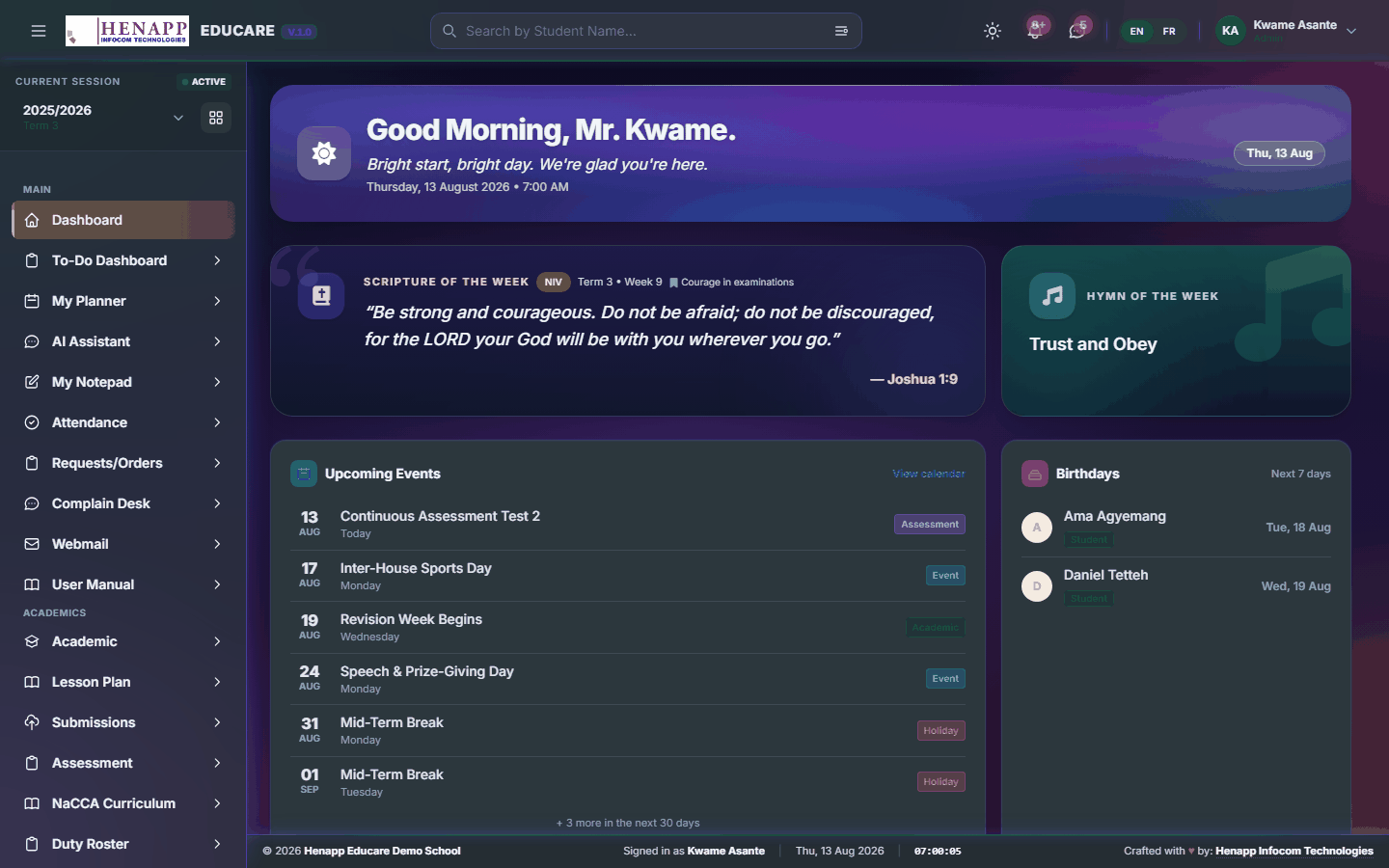
After signing in you land on your dashboard. Everything else is reached from the sidebar on the left and the bar across the top.
The sidebar
- The sidebar lists every part of the system you are allowed to use. What you see here is exactly what this guide covers — nothing more, nothing less.
- Click a heading to open its submenus; click again to close it.
- On a phone, tap the ☰ menu icon at the top-left to slide the sidebar in and out.
The top bar
- Academic year and term selector — nearly every page shows data for the year and term chosen here. If figures look wrong or a list looks empty, check this first.
- Search — jump to any page or person by name.
- Sun / moon icon — switch between light and dark appearance.
- Bell icon — your notifications.
- Your name and photo — profile, and Sign out.
3. Your profile and password
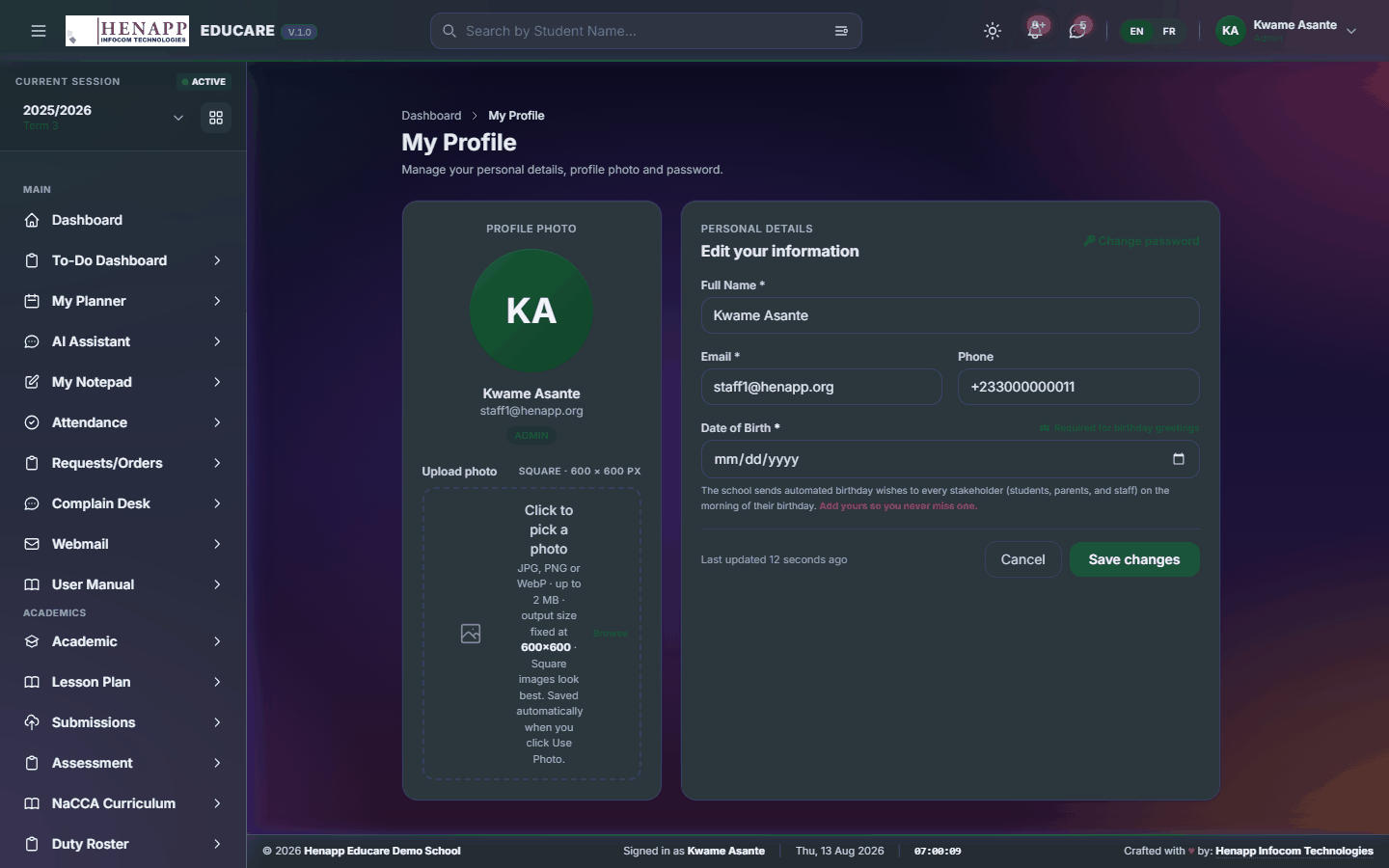
Your profile holds your contact details, your photo and your password.
How to update your details
- Click your name at the top-right, then Profile.
- Edit your phone number, address or other details and click Save.
- Click your photo to upload a new one — a clear head-and-shoulders picture works best.
How to change your password
- Open your profile and find the Change Password section.
- Type your current password, then your new password twice.
- Click Update Password. You stay signed in on this device.
On a school, library or family computer, click your name and choose Sign out when you finish. Closing the tab alone does not sign you out.
4. Dashboard
Your home page. It summarises what needs your attention today and links straight to the pages that answer it.
Find it in the sidebar under Main → Dashboard.
4.1 Dashboard
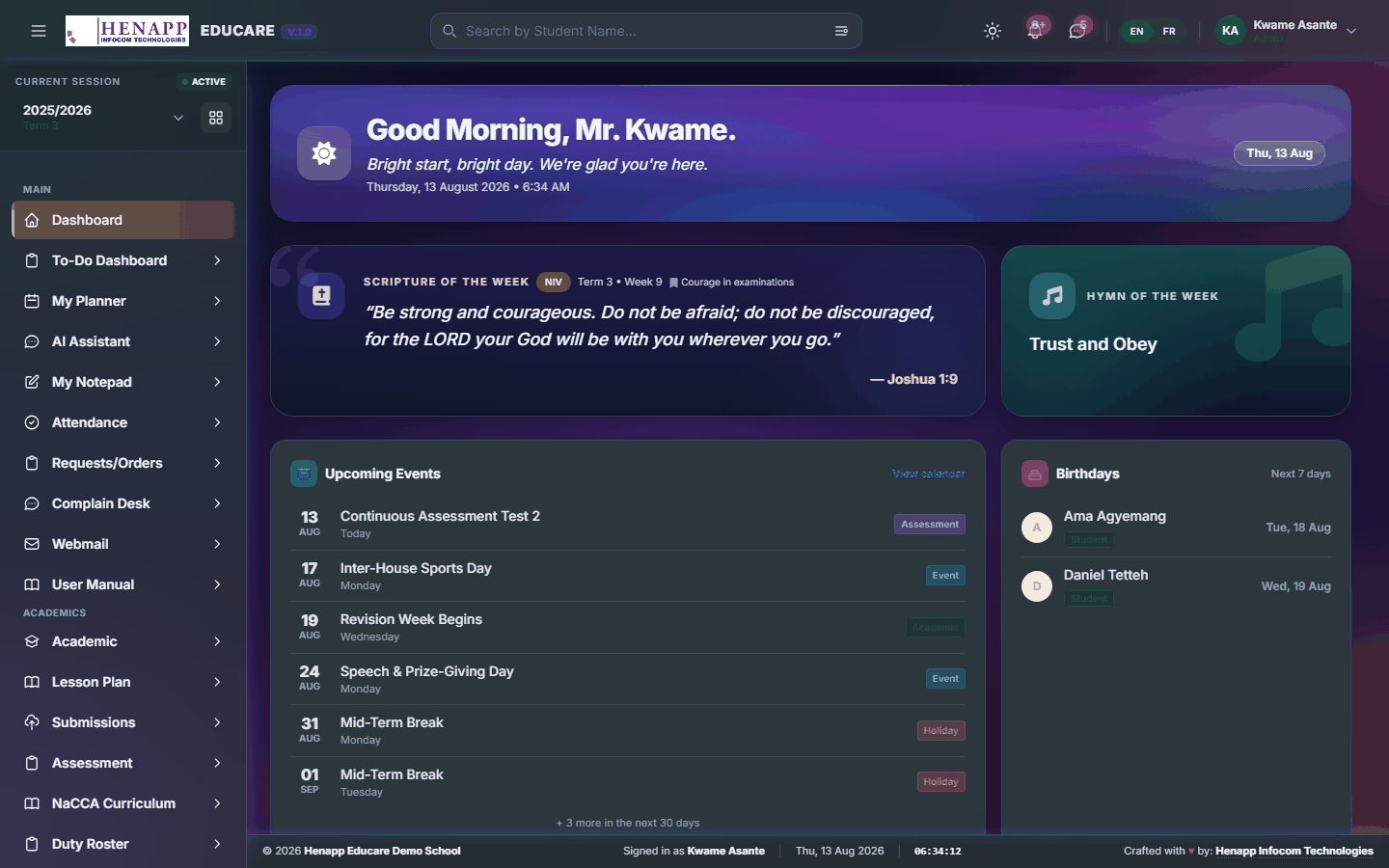
The first page after you sign in. The cards you see depend on your role — the important thing is that each one is a shortcut: click it to open the page behind the number.
How to use it
- Read the cards along the top for the headline figures for today.
- Click any card or chart to open the full page it summarises.
- Use the academic year and term selector in the top bar to see the same dashboard for a different period.
- Scroll down for your recent activity and anything awaiting your action.
5. AI Assistant
A built-in assistant that answers questions about your own school data and drafts routine text for you.
Find it in the sidebar under Main → AI Assistant.
5.1 AI Assistant
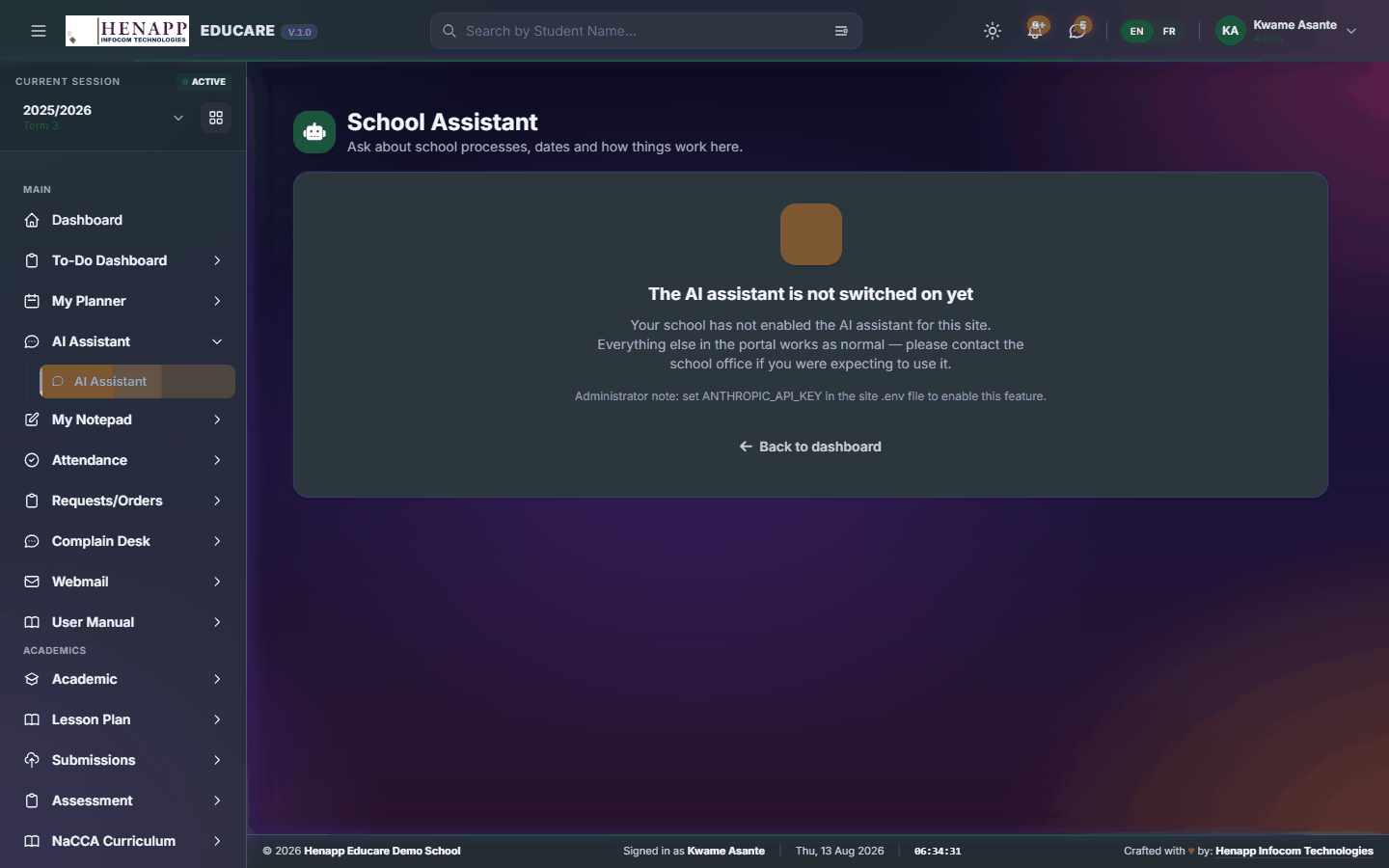
Ask questions in plain language and get answers drawn from your school data, within the limits of what your role is allowed to see. It also drafts routine wording for you to edit — a notice to parents, a report remark, an SMS short enough to send.
How to use it
- Open AI Assistant from the sidebar.
- Type your question or instruction in the box at the bottom and press Enter.
- Ask follow-up questions in the same conversation — it remembers what you just asked, so "now make it shorter" works.
- Your past conversations are listed down the side; click one to reopen it.
- Start a new conversation when you change subject, so earlier context does not colour the answer.
The assistant can be confidently wrong. Treat a figure it quotes as a prompt to open the real page and confirm, and read any text it drafts before you send it.
It answers only from data your role can already open. It is not a way around a permission you do not have.
If it says the assistant is not configured, no AI provider key has been set for your school — an administrator sets that under System Settings. The school can hold keys for several providers, and the system moves to the next one automatically if one is busy or over its daily limit, so the feature keeps working.
6. User Manual
This manual. It is built from your own sidebar, so it documents exactly the menus you can see and nothing you cannot.
Find it in the sidebar under Main → User Manual.
6.1 User Manual
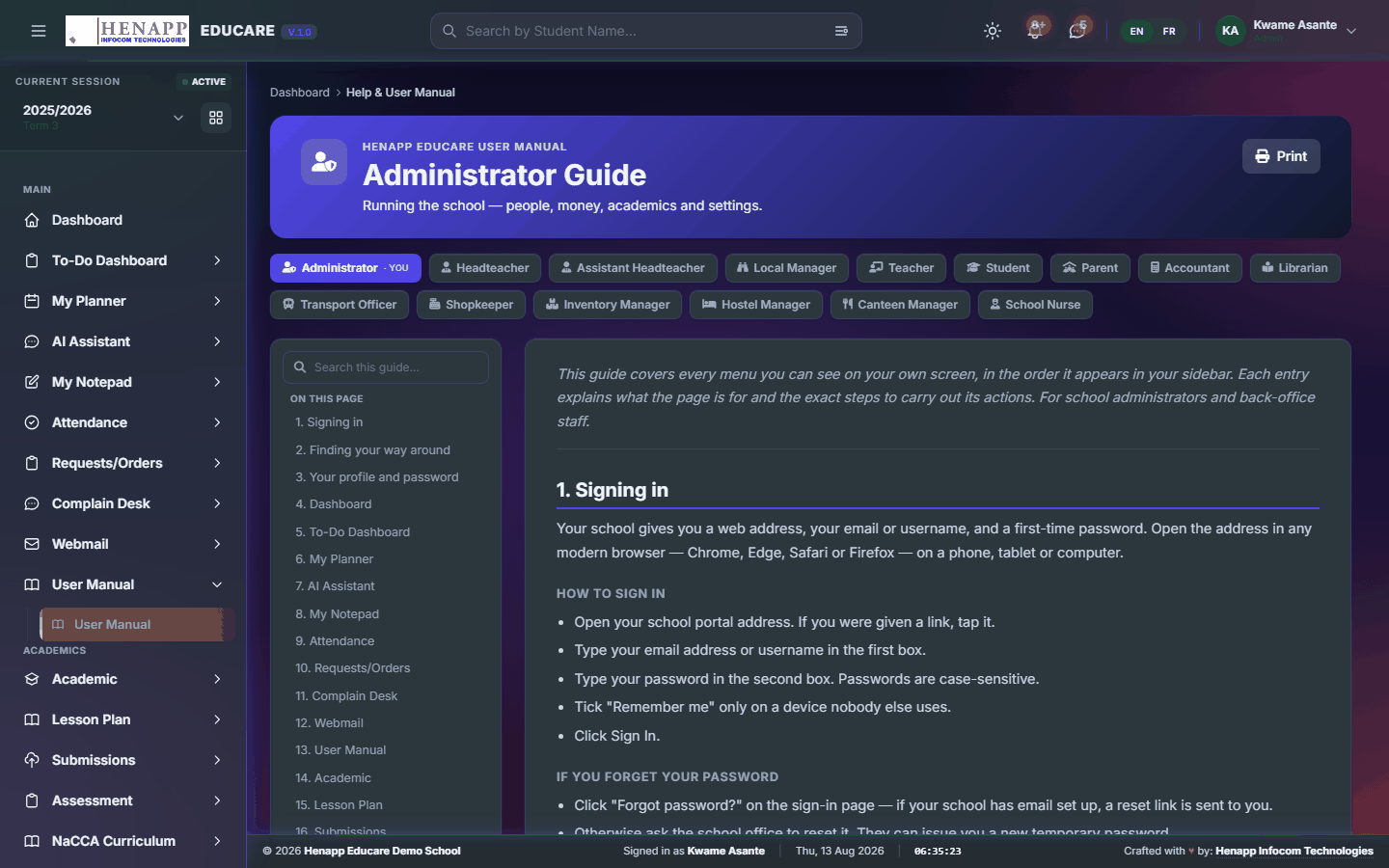
This manual. It is generated from your own sidebar, so every chapter matches a menu you actually have.
How to use it
- Open User Manual from the sidebar.
- Use the contents list on the left to jump to a chapter.
- Type in the search box to filter to the chapters that mention a word.
- Click Print for a paper copy or a PDF.
7. Staff Movement
Staff leaving the premises during the working day: the request, the approval, the gate record and the reports that come out of it.
Find it in the sidebar under Academics → Staff Movement.
7.1 Requests
Ask permission to leave the premises during working hours, and see the history of your own requests.

How to use it
- Open Staff Movement → Requests.
- Click New Request.
- Give the reason, the time you expect to leave and to return.
- Submit. Your approver is notified and you are told the outcome.
8. Teacher Resource
A shared file drive for teaching material — upload, organise into folders, and share with colleagues or a class.
Find it in the sidebar under Academics → Teacher Resource.
8.1 My Drive
Your teaching file drive — upload material, sort it into folders, and share it with colleagues or a class.

How to use it
- Open Teacher Resource → My Drive.
- Click Upload and choose your files, or drag them onto the page.
- Use New Folder to organise them.
- Use a file's Share option to give colleagues or a class access.
- Click a file to preview it in the browser without downloading.
8.2 Starred
The files you have starred, for quick reach.

How to use it
- Star any file from its menu.
- Open Teacher Resource → Starred to see just those.
8.3 Recent
What you have opened or changed lately.

How to use it
- Open Teacher Resource → Recent.
- Files are listed most recently used first.
9. Transport
School transport — routes, who rides, and the fares collected.
Find it in the sidebar under Finance → Transport.
9.1 Transport Overview
Routes, vehicles and riders in summary.

How to use it
- Open Transport → Transport Overview.
- Add routes and assign vehicles to them.
- Subscribe learners to a route and set the fare.
10. Team
The directories — how to look up a colleague or a learner without going through a module.
Find it in the sidebar under Team.
10.1 Staff Directory
Every member of staff, searchable, with the contact details your role is allowed to see.

How to use it
- Open Team → Staff Directory.
- Search by name, or filter by department or role.
- Click a colleague to see their details.
- Export the directory where your role permits it.
10.2 Student Directory
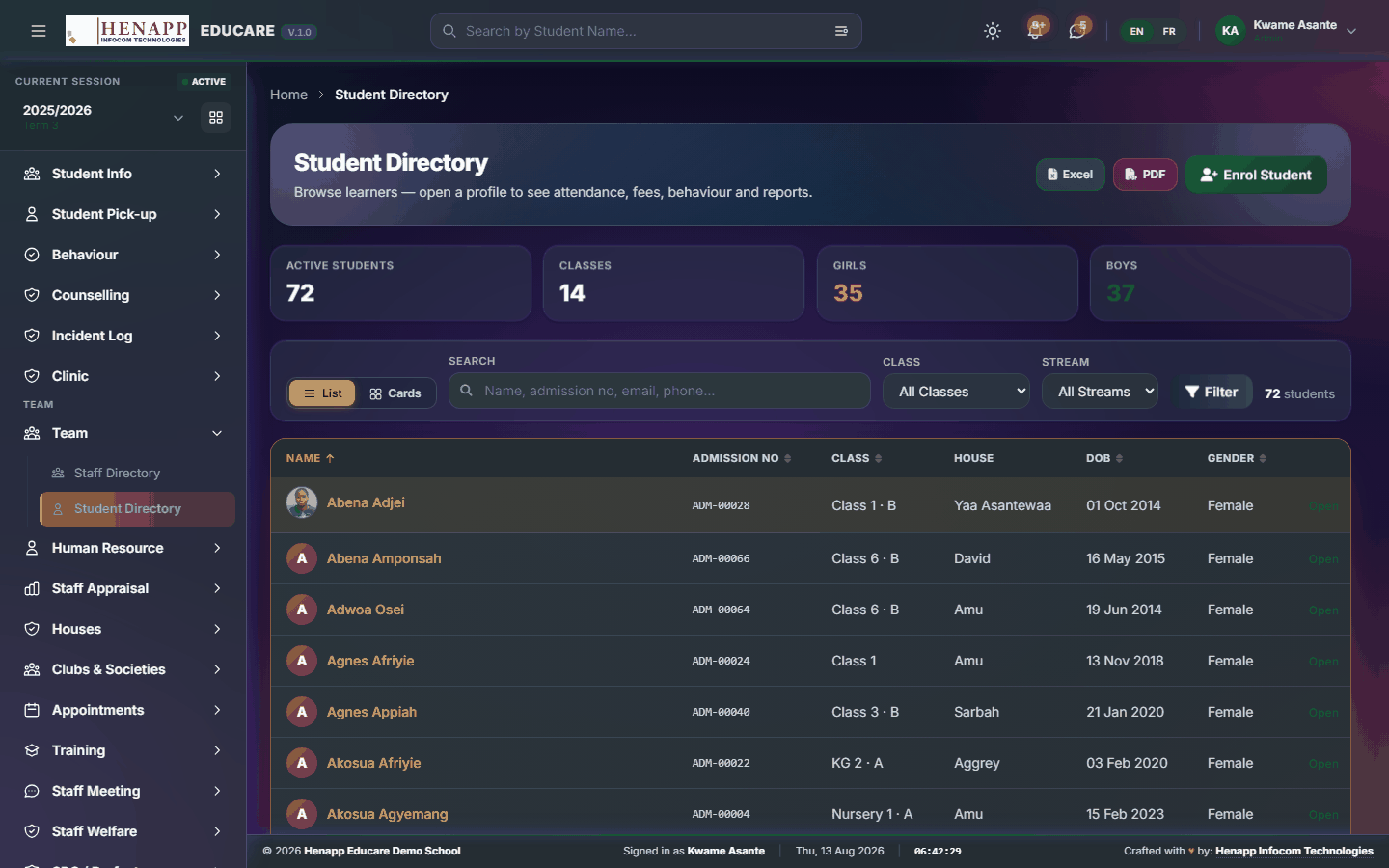
Learners you are entitled to look up — the classes you teach, or your own children.
How to use it
- Open Team → Student Directory.
- Search by name or admission number.
- Click a learner for their details.
A teacher sees the classes they teach; a parent sees their own children. The directory is scoped to your role, not to the whole school.
11. Training
Staff professional development — the programmes on offer, who has attended, and the certificates that follow.
Find it in the sidebar under Team → Training.
11.1 Browse Trainings
Training programmes on offer to staff.

How to use it
- Open Training → Browse Trainings.
- Read what is available and its dates.
- Enrol on anything open to you.
11.2 My Trainings
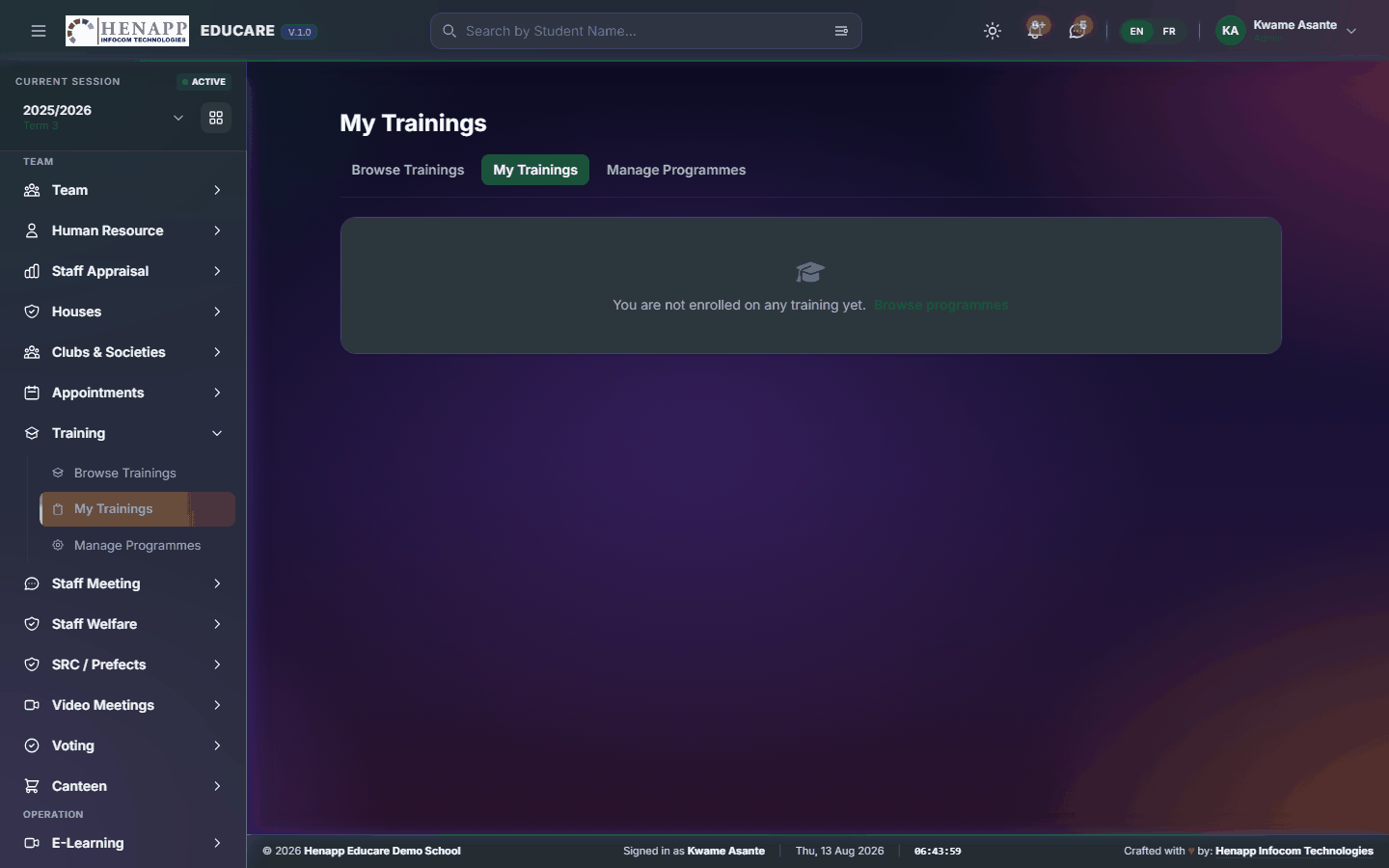
Training you have enrolled on or completed, and the certificates earned.
How to use it
- Open Training → My Trainings.
- Read your enrolments and their status.
- Download the certificate for anything completed.
12. Staff Meeting
The staff noticeboard — announcements, minutes and documents circulated to the whole staff.
Find it in the sidebar under Team → Staff Meeting.
12.1 Staff Board
The staff noticeboard — announcements, minutes and circulated documents.

How to use it
- Open Staff Meeting → Staff Board.
- Read the posts, newest first.
- Open a post for its full text and attachments.
- Comment where discussion is invited.
12.2 New Post
Post to the staff board.

How to use it
- Open Staff Meeting → New Post.
- Give it a title and write the message.
- Attach any documents — minutes, an agenda, a circular.
- Choose who it goes to, then Publish. Staff are notified.
13. Staff Welfare
The staff welfare scheme — contributions, claims and the fund's position.
Find it in the sidebar under Team → Staff Welfare.
13.1 Staff Welfare
The staff welfare fund — contributions in, claims out, and the balance.

How to use it
- Open Staff Welfare.
- Read the fund position and your own contributions.
- Submit a claim with its reason and supporting documents.
- Administrators approve claims and record payments from the same page.
14. Getting help
If a page does not behave as this guide describes, or you believe you are missing a menu you should have, contact your school office first — most access questions are settled by an administrator adjusting your role.
- A menu is missing — your role does not include it. Ask an administrator.
- A list is empty — check the academic year and term in the top bar before anything else.
- A page refuses to load — sign out, sign back in, and try once more before reporting it.