
This guide covers every menu you can see on your own screen, in the order it appears in your sidebar. Each entry explains what the page is for and the exact steps to carry out its actions. For clinic and sick-bay staff.
1. Signing in
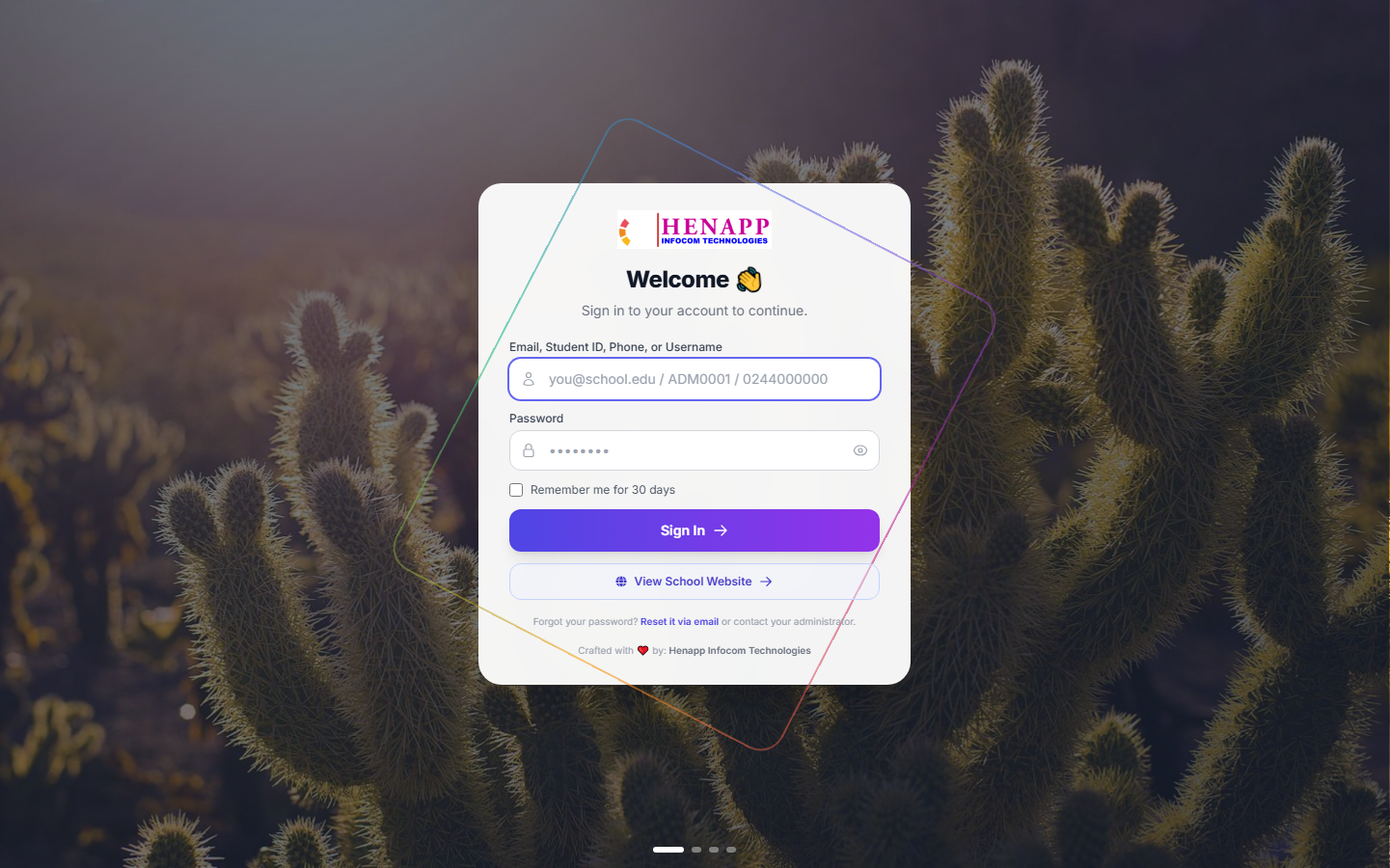
Your school gives you a web address, your email or username, and a first-time password. Open the address in any modern browser — Chrome, Edge, Safari or Firefox — on a phone, tablet or computer.
How to sign in
- Open your school portal address. If you were given a link, tap it.
- Type your email address or username in the first box.
- Type your password in the second box. Passwords are case-sensitive.
- Tick "Remember me" only on a device nobody else uses.
- Click Sign In.
If you forget your password
- Click "Forgot password?" on the sign-in page — if your school has email set up, a reset link is sent to you.
- Otherwise ask the school office to reset it. They can issue you a new temporary password.
The system asks you to set your own password the first time you sign in. Choose something only you know, and never share it — everything you do is recorded against your name.
2. Finding your way around
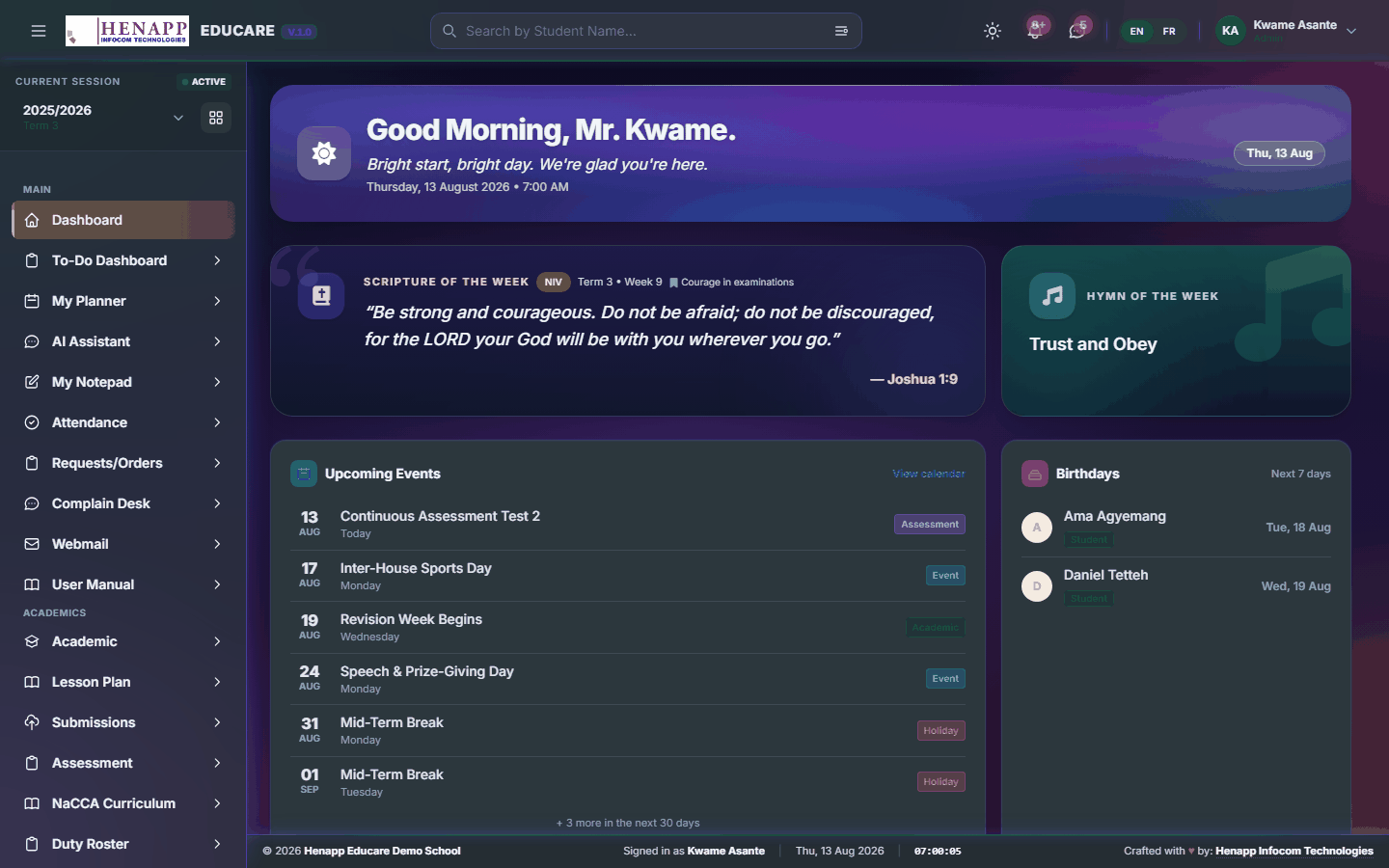
After signing in you land on your dashboard. Everything else is reached from the sidebar on the left and the bar across the top.
The sidebar
- The sidebar lists every part of the system you are allowed to use. What you see here is exactly what this guide covers — nothing more, nothing less.
- Click a heading to open its submenus; click again to close it.
- On a phone, tap the ☰ menu icon at the top-left to slide the sidebar in and out.
The top bar
- Academic year and term selector — nearly every page shows data for the year and term chosen here. If figures look wrong or a list looks empty, check this first.
- Search — jump to any page or person by name.
- Sun / moon icon — switch between light and dark appearance.
- Bell icon — your notifications.
- Your name and photo — profile, and Sign out.
3. Your profile and password
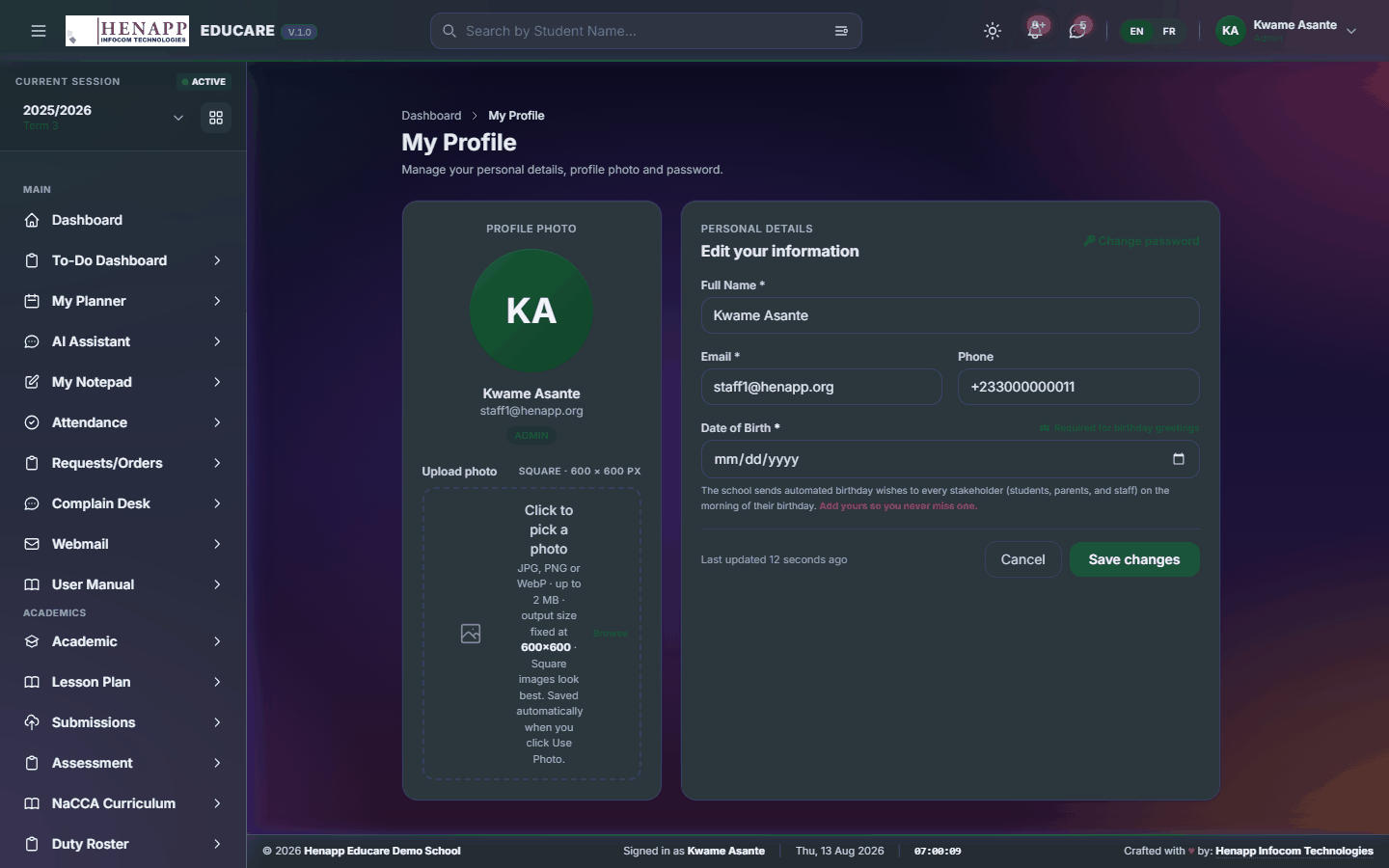
Your profile holds your contact details, your photo and your password.
How to update your details
- Click your name at the top-right, then Profile.
- Edit your phone number, address or other details and click Save.
- Click your photo to upload a new one — a clear head-and-shoulders picture works best.
How to change your password
- Open your profile and find the Change Password section.
- Type your current password, then your new password twice.
- Click Update Password. You stay signed in on this device.
On a school, library or family computer, click your name and choose Sign out when you finish. Closing the tab alone does not sign you out.
4. Dashboard
Your home page. It summarises what needs your attention today and links straight to the pages that answer it.
Find it in the sidebar under Main → Dashboard.
4.1 Dashboard
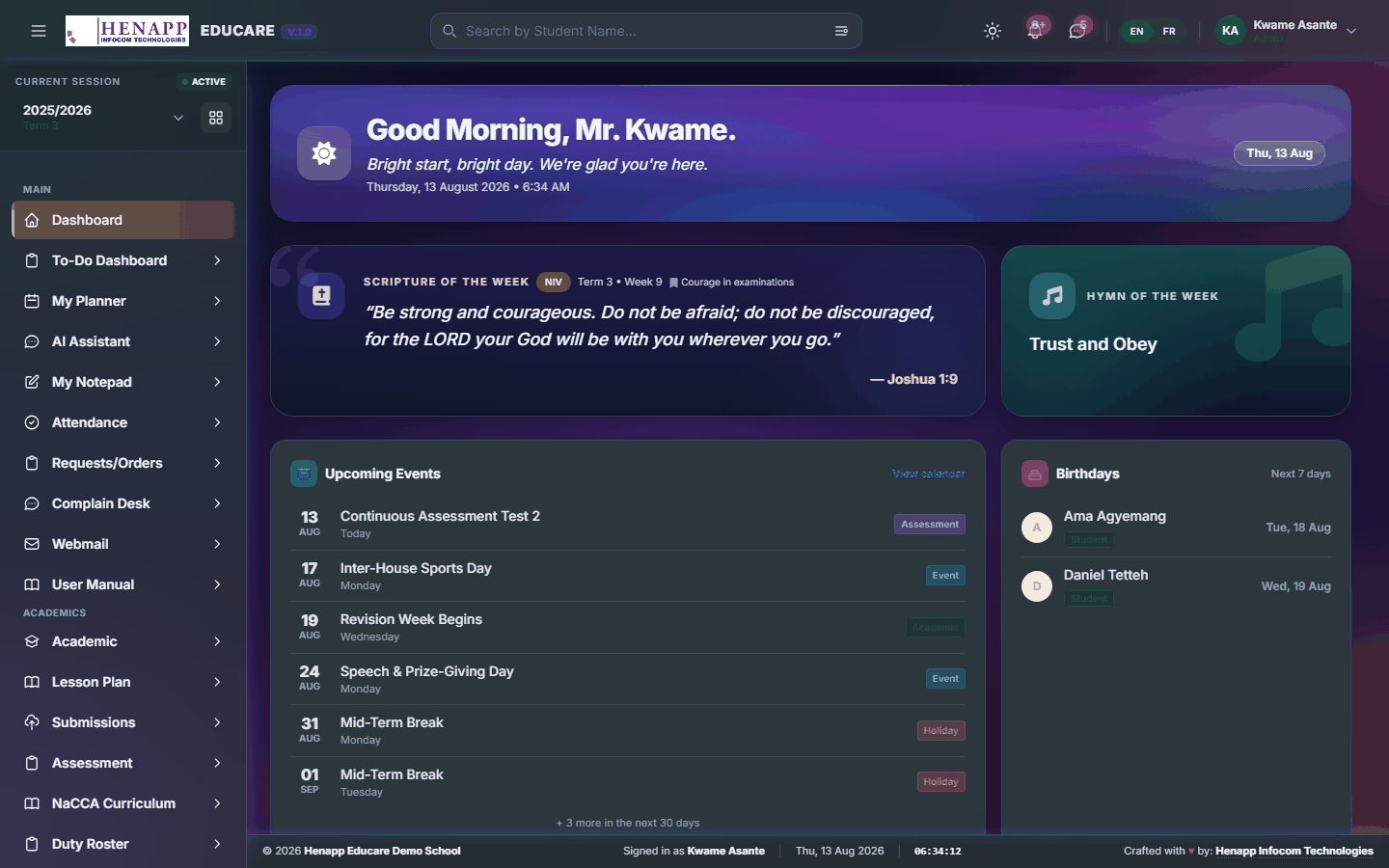
The first page after you sign in. The cards you see depend on your role — the important thing is that each one is a shortcut: click it to open the page behind the number.
How to use it
- Read the cards along the top for the headline figures for today.
- Click any card or chart to open the full page it summarises.
- Use the academic year and term selector in the top bar to see the same dashboard for a different period.
- Scroll down for your recent activity and anything awaiting your action.
5. AI Assistant
A built-in assistant that answers questions about your own school data and drafts routine text for you.
Find it in the sidebar under Main → AI Assistant.
5.1 AI Assistant
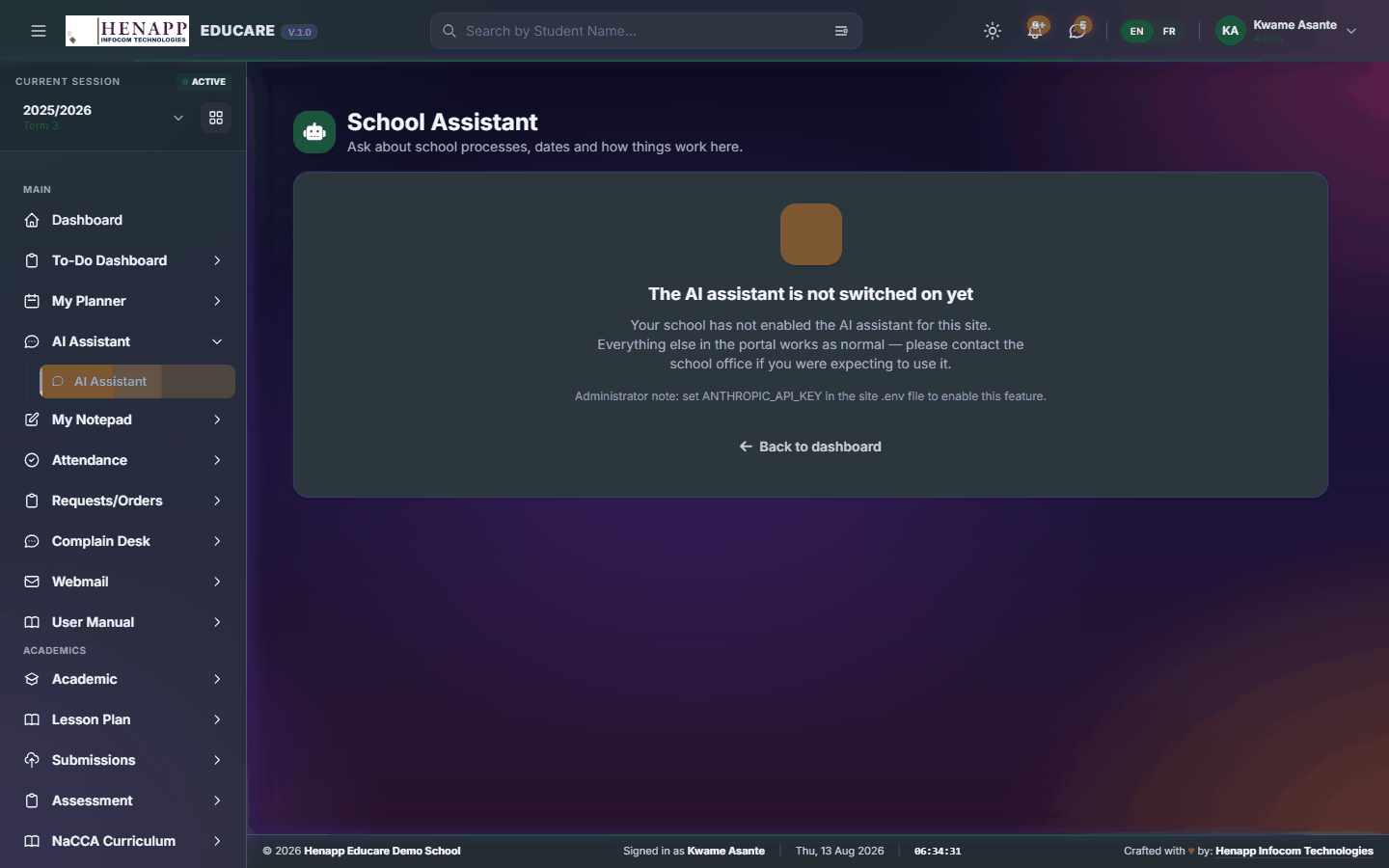
Ask questions in plain language and get answers drawn from your school data, within the limits of what your role is allowed to see. It also drafts routine wording for you to edit — a notice to parents, a report remark, an SMS short enough to send.
How to use it
- Open AI Assistant from the sidebar.
- Type your question or instruction in the box at the bottom and press Enter.
- Ask follow-up questions in the same conversation — it remembers what you just asked, so "now make it shorter" works.
- Your past conversations are listed down the side; click one to reopen it.
- Start a new conversation when you change subject, so earlier context does not colour the answer.
The assistant can be confidently wrong. Treat a figure it quotes as a prompt to open the real page and confirm, and read any text it drafts before you send it.
It answers only from data your role can already open. It is not a way around a permission you do not have.
If it says the assistant is not configured, no AI provider key has been set for your school — an administrator sets that under System Settings. The school can hold keys for several providers, and the system moves to the next one automatically if one is busy or over its daily limit, so the feature keeps working.
6. User Manual
This manual. It is built from your own sidebar, so it documents exactly the menus you can see and nothing you cannot.
Find it in the sidebar under Main → User Manual.
6.1 User Manual
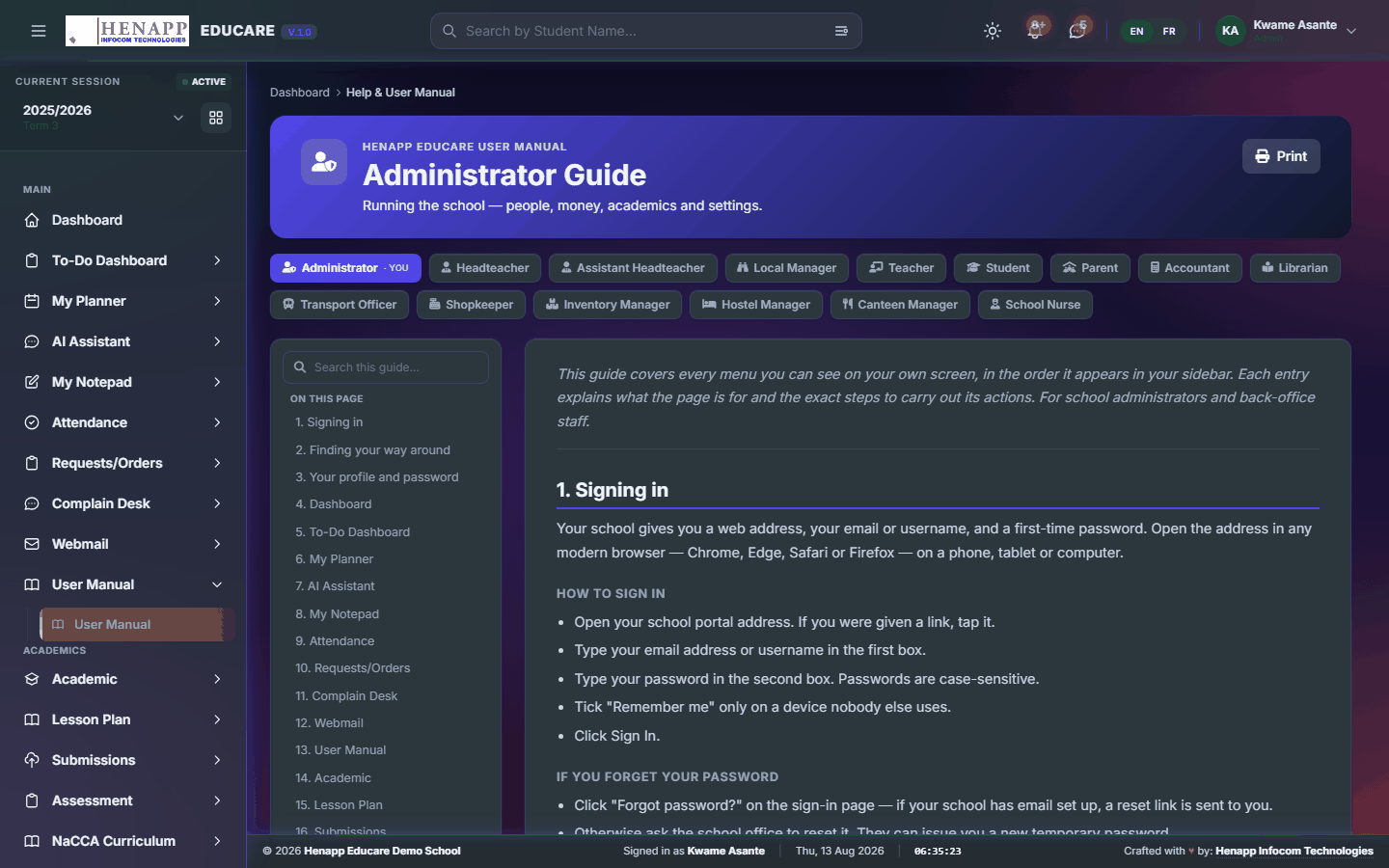
This manual. It is generated from your own sidebar, so every chapter matches a menu you actually have.
How to use it
- Open User Manual from the sidebar.
- Use the contents list on the left to jump to a chapter.
- Type in the search box to filter to the chapters that mention a word.
- Click Print for a paper copy or a PDF.
7. Training
Staff professional development — the programmes on offer, who has attended, and the certificates that follow.
Find it in the sidebar under Team → Training.
7.1 Browse Trainings
Training programmes on offer to staff.

How to use it
- Open Training → Browse Trainings.
- Read what is available and its dates.
- Enrol on anything open to you.
7.2 My Trainings
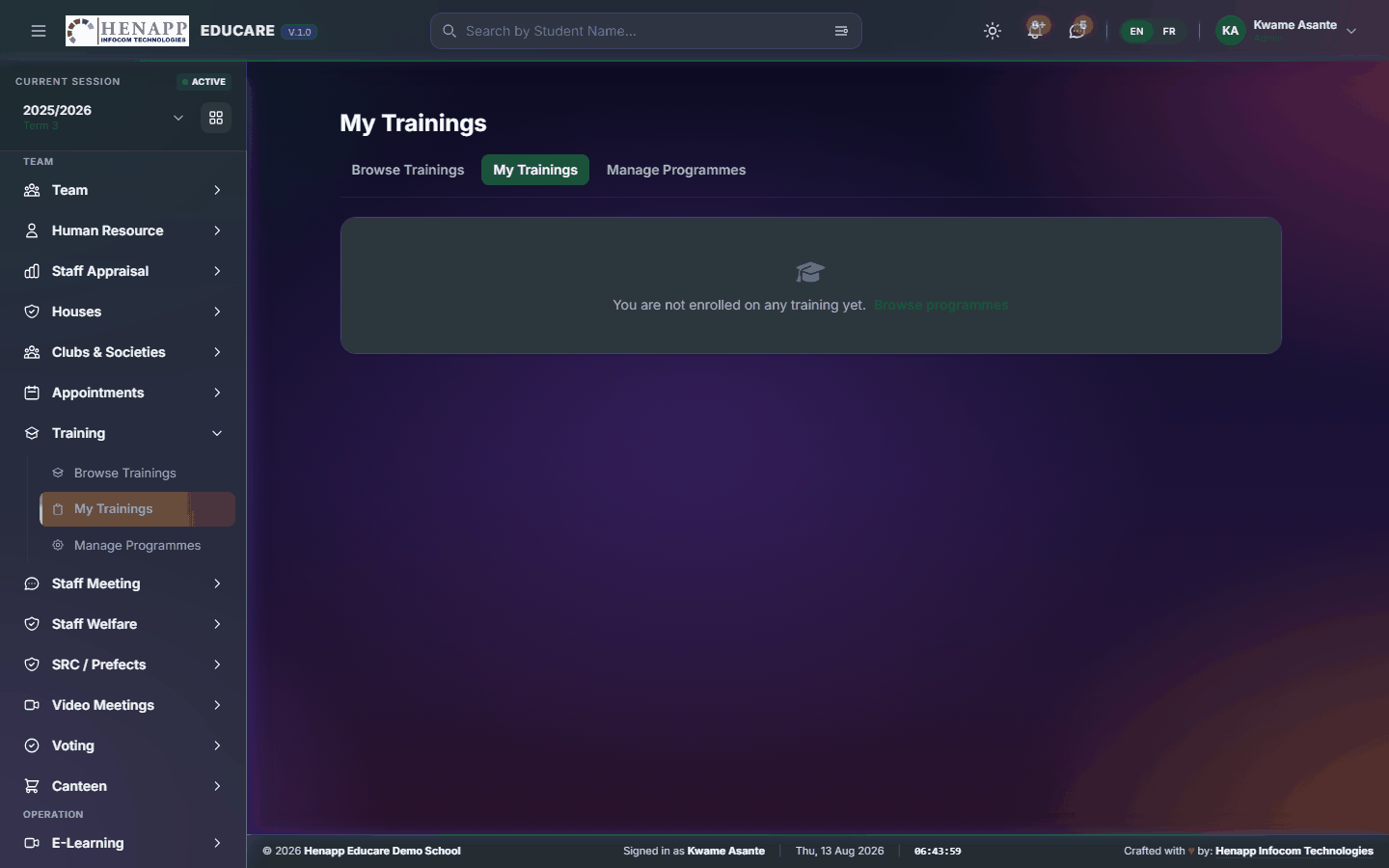
Training you have enrolled on or completed, and the certificates earned.
How to use it
- Open Training → My Trainings.
- Read your enrolments and their status.
- Download the certificate for anything completed.
8. Clinic
The sick bay: visits, medication given, and each learner's health profile including allergies and conditions.
Clinic records are restricted to health and senior staff. Do not repeat what you read here outside the people handling the case.
Find it in the sidebar under Student Info → Clinic.
8.1 Clinic Dashboard
The sick bay at a glance — today's visits and anything outstanding.

How to use it
- Open Clinic → Clinic Dashboard.
- Read today's visits and any learner still in the bay.
8.2 Sick-Bay Visits
Every sick-bay visit, with its complaint, treatment and outcome.

How to use it
- Open Clinic → Sick-Bay Visits.
- Filter by date or learner.
- Open a visit to read the record.
8.3 New Visit
Record a learner reporting to the sick bay.

How to use it
- Open Clinic → New Visit.
- Choose the learner — their allergies and conditions are shown as soon as you do.
- Record the complaint, the treatment given, and the outcome: returned to class, sent home, or referred.
- Save. Where the learner is sent home or referred, the parent is notified.
The learner's health profile is shown on this form for a reason. Check it before giving anything.
8.4 Medication Log
Medication given at school — what, to whom, how much and by whom.

How to use it
- Open Clinic → Medication Log.
- Record each administration with the learner, medicine, dose, time and your name.
- Where a parent has supplied medication with instructions, record those too.
8.5 Health Profiles
Each learner's health profile — allergies, conditions, medication and emergency contacts.

How to use it
- Open Clinic → Health Profiles.
- Search for the learner.
- Record allergies, chronic conditions, regular medication and the emergency contact.
- Save. Allergies then surface automatically on the visit form.
8.6 Visit Log Report
Sick-bay activity over a period — volume, common complaints and patterns worth acting on.

How to use it
- Open Clinic → Visit Log Report.
- Set the period, read the summary and export it.
9. Getting help
If a page does not behave as this guide describes, or you believe you are missing a menu you should have, contact your school office first — most access questions are settled by an administrator adjusting your role.
- A menu is missing — your role does not include it. Ask an administrator.
- A list is empty — check the academic year and term in the top bar before anything else.
- A page refuses to load — sign out, sign back in, and try once more before reporting it.